


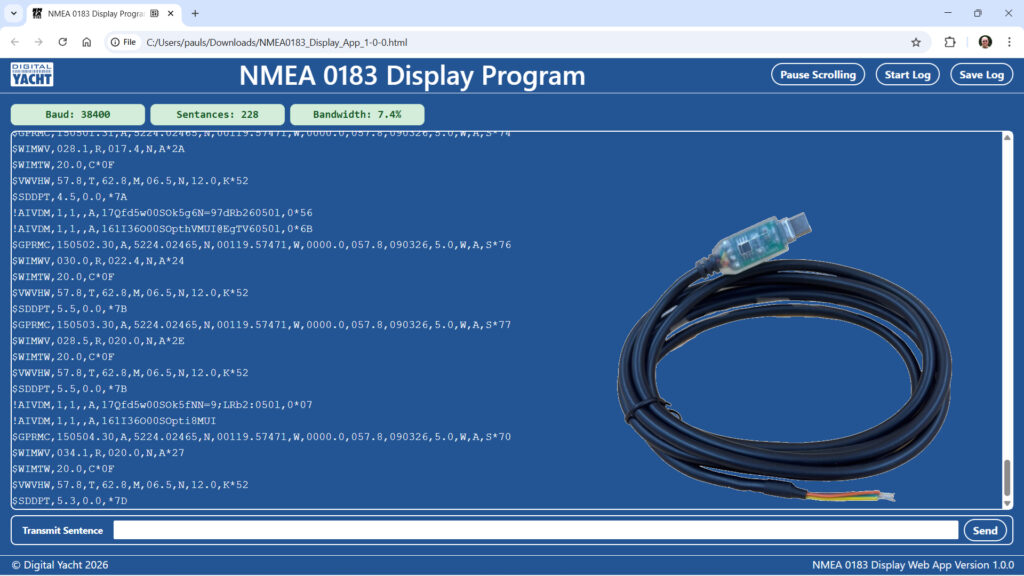
Often overshadowed by the newer and faster NMEA 2000 standard, there are still many, many boats with NMEA 0183 equipment onboard and having a reliable app to display NMEA 0183 data, is still an important addition to anyone’s toolkit.
There are many general purpose terminal programs available that can be used to display NMEA 0183 ASCII serial data, such as Tera Term, PuTTY, Screen, Hyper Terminal, etc. but they can be quite confusing, difficult to setup and often only run on one type of operating system.
After publishing our NMEA 2000 Display App to very positive feedback from dealers and boat owners, we decided to re-purpose much of the code and create a new NMEA 0183 Display App.
The world’s First Multi-Platform Browser-Based NMEA 0183 Display App
Digital Yacht’s NMEA 0183 Display App takes a new approach and is the World’s first multi-platform, browser based NMEA 0183 Display App that will run on Windows, LINUX, Mac OSX and Raspbian. There is no installation and if you can save a file and find it again, then that is as complex as it gets with just a single HTML5 file to worry about (less than 0.1MB in size).
You need to use an app with a browser that supports the Web Serial API, which currently includes Chrome, Chromium, MS Edge and Opera. We also plan to support Firefox going forward (with its WebSerial Extension) but this was not possible for the first release of the app.
Step by Step Guide
Designed to work with our NMEA to USB Adaptor Cables, simply download the free App from our dedicated GitHub site :
Unzip the file and after plugging your USB to NMEA Adaptor cable in to your computer, double click the HTML file. Your default browser will open the web App and display the welcome page….
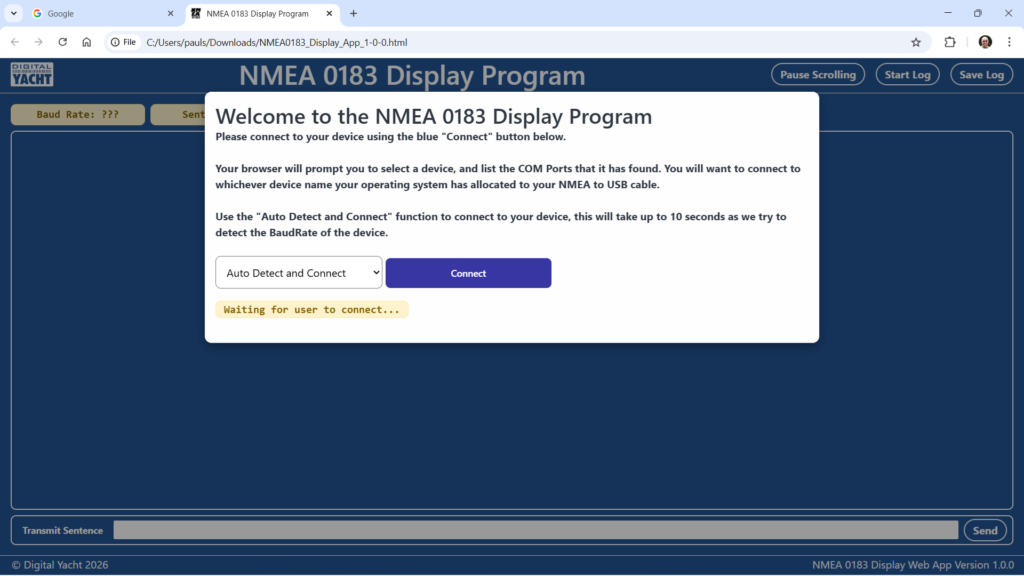
Click the CONNECT button and the app will search for the USB to NMEA Adaptor Cable and display all of the USB serial ports that it found….
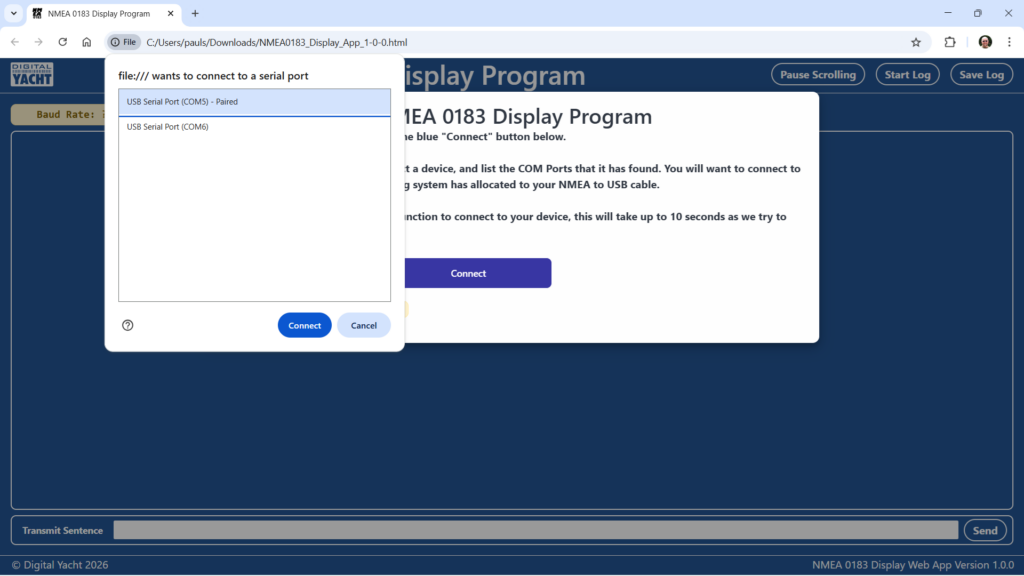
Select the serial port that has been allocated to your USB to NMEA Adaptor Cable and click the CONNECT button. The app will now start checking what baud rate the NMEA 0183 Data is being received at (takes less than 10 seconds)…

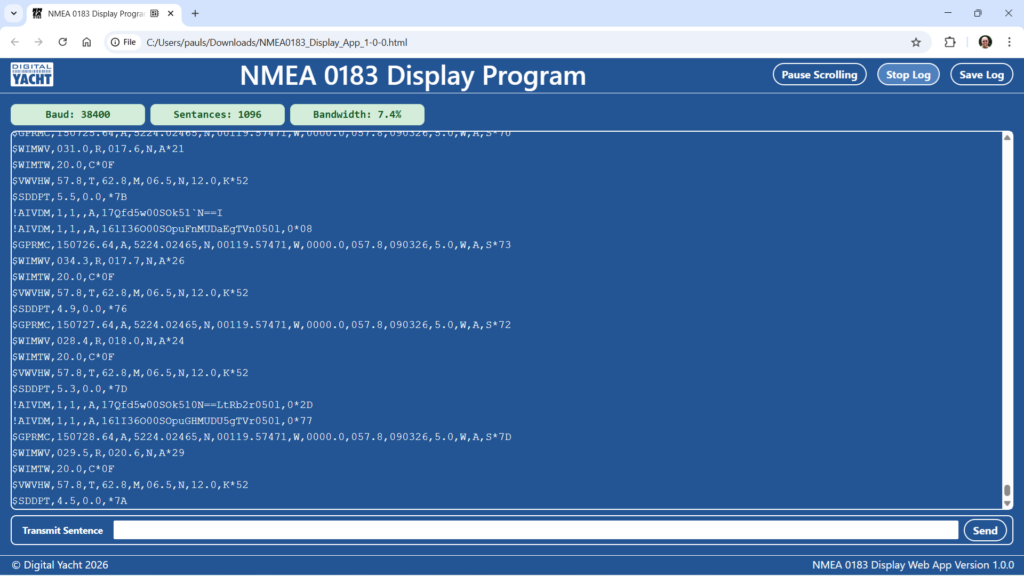
As soon as it detects the baud rate, the NMEA 0183 Sentences being received will start to scroll down the screen…
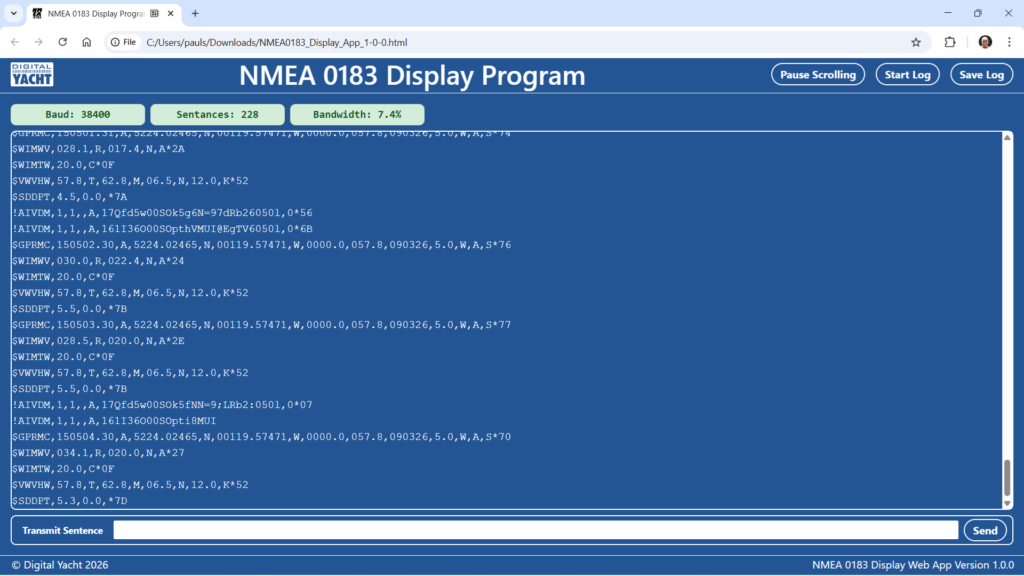
Just above the NMEA 0183 Sentences window, are green status boxes that display the detected Baud Rate, Sentence count and Data Bandwidth.
If you wish to read the actual data, click the PAUSE button and the scrolling will stop and you can easily read the data in the sentences. You can also select one or more sentences and copy and paste them into another program, such as one of the online AIS decoding sites like Agg Software or Maritec Solutions.
To start the data scrolling again, just click the PAUSE button again.
If you wish to log the received data, just click the START LOG button and your browser will start to locally store the received data. Note that the START LOG button changes to a STOP LOG button…
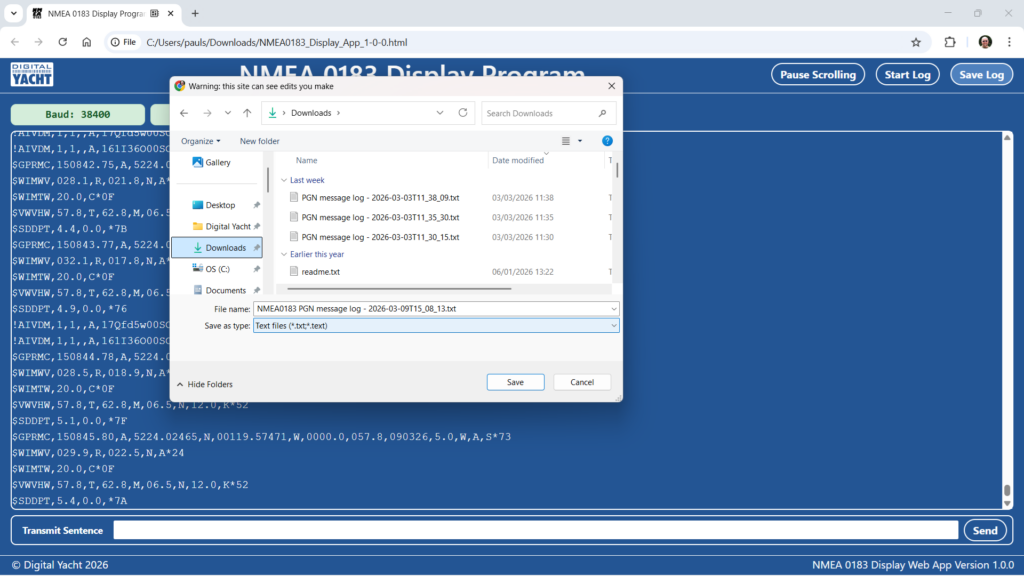
Once you have finished logging all of the data you need, click the STOP LOG button and then click the SAVE LOG button and a browse type pop-up will appear for you to choose where to save the log file and give it a meaningful file name…
Some equipment, can be configured by sending special serial commands and our NMEA 0183 Display App, has been designed to make this very easy. Simply copy and paste (or type) the special command into the TRANSMIT SENTENCE box at the bottom of the page….
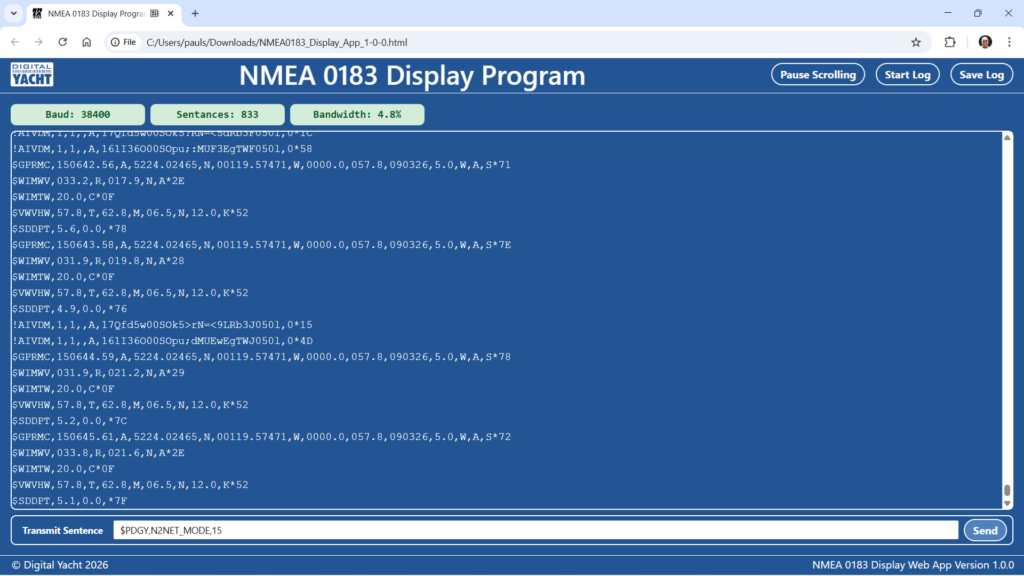
If the command needs to have an NMEA 0183 Checksum, then you will need to add this yourself, but the App will automatically add the NMEA 0183 End Of Line (EOL) characters which are Carriage Return and Line Feed (CR+LF).
This basically covers all of the main features of the new NMEA 0183 Display App and we have created a short video to show the App in action….
